Upgrading Your RAM for Enhanced PC Performance on the Sunshine Coast
Table Of Contents
Tips for Installing Your New RAM
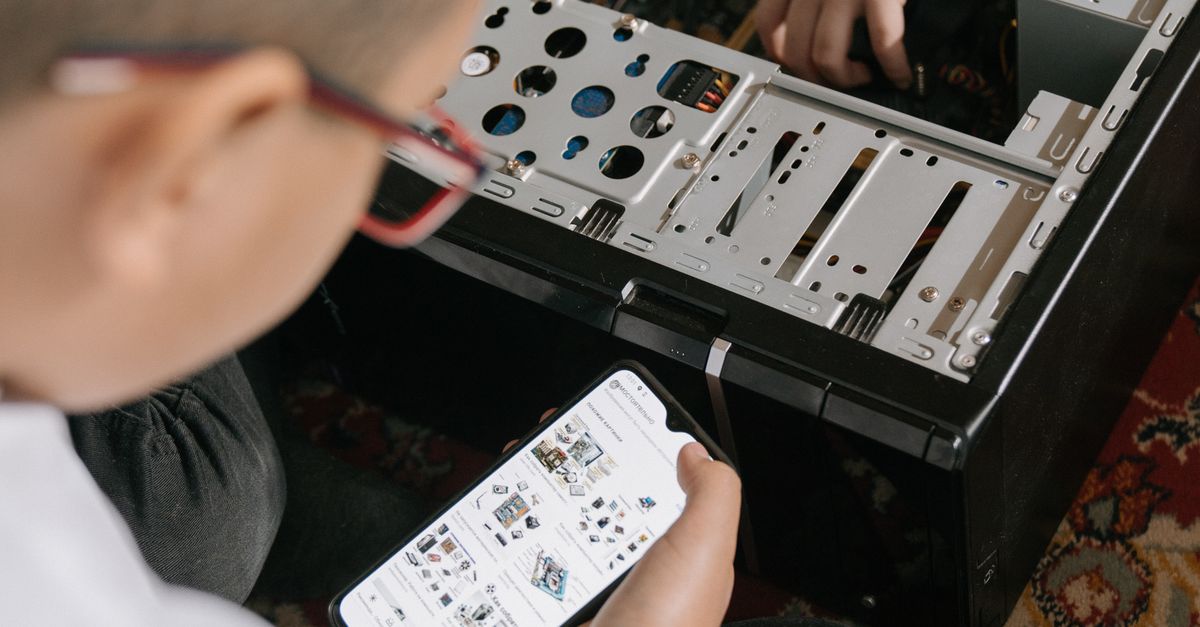
When preparing to install your new RAM, ensure that you have the right tools on hand. A small Phillips screwdriver will often be needed, along with an anti-static wrist strap to prevent any static electricity from damaging the components. Before you begin, switch off your computer and unplug it from the power source. Removing the side panel of your PC case grants access to the motherboard where the RAM slots are located. Take care to handle the RAM modules gently, gripping them by the edges to avoid touching the gold connectors.
Before inserting the new RAM, check your motherboard's specifications to confirm compatibility. Align the notch on the RAM module with the corresponding bump in the slot to ensure proper fitting. Apply firm, even pressure until the module clicks into place, securing it in the slot. It's advisable to install RAM in the recommended configuration as per your motherboard instructions, often requiring placement in specific slots to take advantage of dual-channel mode. Once all modules are installed, reattach the side panel and reconnect the power before proceeding to boot up the system.
Best Practices for Safe Installation
Ensuring a safe installation requires careful preparation and attention to detail. Begin by gathering all necessary tools, such as a screwdriver and an anti-static wrist strap. It is essential to power down your PC completely and unplug it from the wall before opening the case. This helps prevent any accidental short circuits. To further protect the sensitive components, create a clean, static-free workspace. Working on a non-carpeted surface can minimise static electricity build-up.
When inserting the new RAM sticks, handle them by the edges to avoid touching the gold connectors. Align the notches on the RAM with the corresponding slots on the motherboard. Firmly press down until they click into place. It’s crucial to check that all sticks are properly seated to ensure optimal performance. After installation, close the case securely before reconnecting power. This careful approach not only safeguards your components but also contributes to a smoother overall installation process.
Testing Your RAM After Installation
After installing your new RAM, it’s essential to ensure that everything is functioning correctly. Start by rebooting your computer and entering the BIOS or UEFI settings during the startup process. In these settings, you can confirm that the new RAM is recognised and check if the total memory is displayed correctly. Running a memory diagnostic tool can further verify the installation. Windows users can utilise the built-in Windows Memory Diagnostic Tool, while macOS users may choose to use third-party applications for a thorough check.
To assess the performance improvements, observe your system's responsiveness during regular tasks and high-demand applications. Note any enhancements in loading times, multitasking capabilities, and overall stability. Benchmarking software can also provide quantitative data on how the new RAM has affected your system’s performance. Regularly checking these metrics can help identify whether the upgrade delivered the expected results.
Verifying Performance Improvements
After installing new RAM, it is essential to assess whether the upgrade has made a noticeable impact on your system's performance. You can use various benchmarking tools designed to measure memory speed and overall system efficiency. Popular options include Cinebench, Geekbench, and UserBenchMark. Running these tests both before and after the installation will provide a clear comparison of performance metrics, helping you determine the effectiveness of your upgrade.
Observing general system responsiveness can also serve as a practical indicator of improvement. Tasks such as application loading times, multitasking capabilities, and gaming performance should feel smoother with the increased RAM. Pay close attention to how your system handles intensive tasks like video editing or running virtual machines. If you notice a significant reduction in lag and faster processing times, it is likely your new RAM has made a positive difference to your PC's performance.
Common Myths About RAM Upgrades
Many people believe that simply increasing the amount of RAM will always lead to a significant boost in PC performance. While adding more RAM can help, especially for tasks like gaming or graphic design, the improvement will vary depending on the existing specifications and what tasks the computer is handling. If other components, like the CPU or graphics card, are underperforming, the increased RAM may not lead to noticeable enhancements.
Another common misconception is that any type of RAM can replace existing modules without compatibility issues. Different RAM speeds, sizes, and types can affect overall performance and stability. Mixing different brands or specifications may lead to suboptimal operation or even system failures. It is essential to check the motherboard's specifications and match new RAM with existing memory for optimal results.
Debunking Misconceptions
One common misconception is that installing more RAM will automatically speed up a slow computer. While having sufficient RAM is crucial for handling multiple applications at once, other factors such as the processor speed and the type of storage drive also play significant roles. If the CPU is outdated or the storage is a traditional hard drive instead of a solid-state drive, simply adding RAM won't lead to noticeable performance gains.
Another myth is that all RAM is the same and any type will work efficiently in every system. This isn't true, as compatibility issues can arise from differences in specifications like speed, frequency, and form factor. Using incompatible RAM can lead to system instability or failure to boot. Therefore, it's vital to consult your motherboard’s specifications before upgrading to ensure that you choose the correct type of RAM to enhance your computer’s performance effectively.
FAQS
What type of RAM should I buy for my PC?
The type of RAM you should buy depends on your motherboard specifications. Check the supported RAM type (DDR3, DDR4, etc.), the maximum capacity, and the speed compatibility before making a purchase.
How do I know if my RAM needs an upgrade?
Signs that your RAM may need an upgrade include slower performance when multitasking, frequent crashes, and running out of memory during heavy applications like gaming or video editing.
Is it difficult to install new RAM on my own?
Installing new RAM can be relatively straightforward if you follow the right steps. However, if you're not comfortable, consider seeking help from a professional technician to ensure a safe installation.
How can I test if my new RAM is working properly?
You can test your new RAM by using software tools like MemTest86 or Windows Memory Diagnostic to check for errors. Additionally, monitor your PC’s performance to see if you notice improvements.
Are there any common misconceptions about RAM upgrades?
Yes, one common myth is that more RAM always equals better performance. While having sufficient RAM is important, other factors like CPU speed, storage type, and graphics capabilities also play significant roles in overall performance.
Related Links
Choosing the Right RAM for Your PC: A Sunshine Coast GuideBest Practices for Upgrading RAM in Custom PCs on the Sunshine Coast
Cost Factors for RAM Upgrades: What Sunshine Coast Customers Should Know
Understanding RAM Compatibility for Your PC Upgrade on the Sunshine Coast
Common Myths About RAM Upgrades Debunked for Sunshine Coast Residents
A Step-by-Step Guide to Performing a RAM Upgrade in Sunshine Coast
The Benefits of Increasing RAM for Gaming PCs on the Sunshine Coast